MFA + Security Basics (AWS vs Azure Conditional Access)
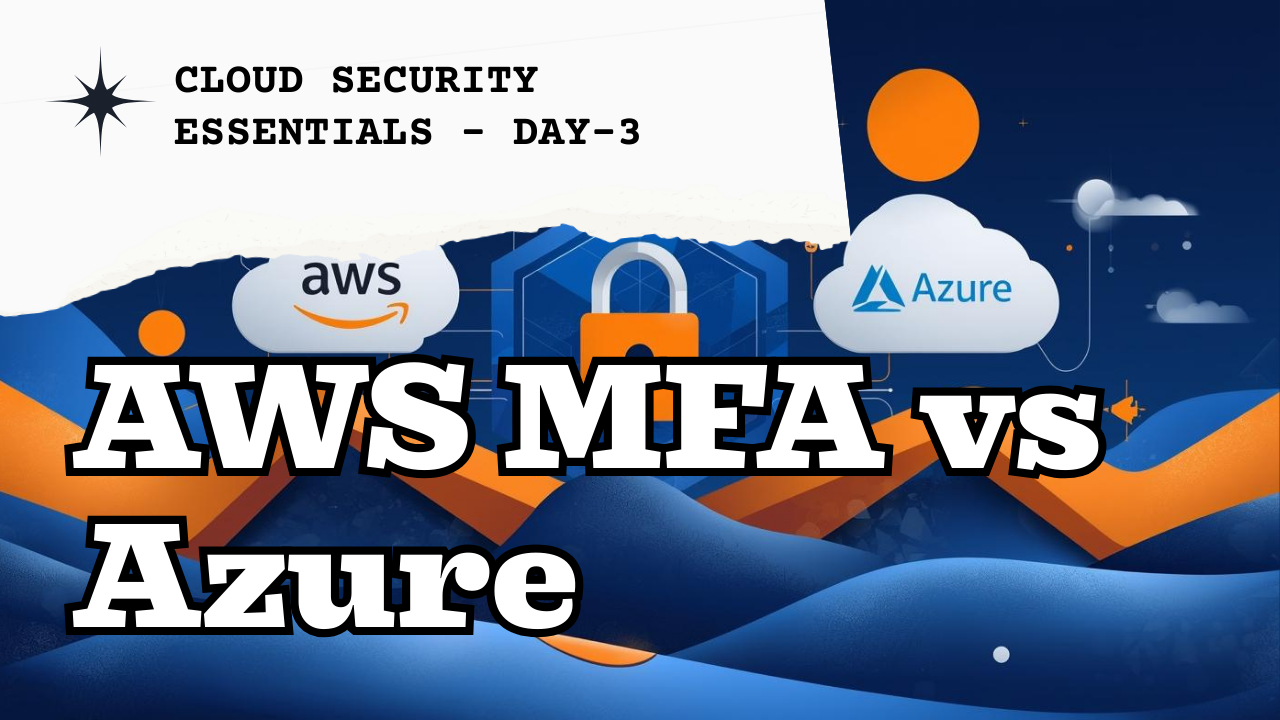
Welcome to Day 3 of the 100 Days of Multi-Cloud Learning Series!
Today, we’re covering MFA + Security Basics (AWS vs Azure Conditional Access) — two of the most critical identity security features in the cloud.
By the end of this post, you’ll understand:
✅ What MFA is
✅ How AWS implements MFA
✅ How Azure uses Conditional Access
✅ Real-world use cases
✅ Hands-on setup steps for both clouds
🎯 What You’ll Learn
What is Multi-Factor Authentication (MFA)?
How to enable MFA in AWS IAM
How to create Conditional Access policies in Azure
AWS vs Azure security comparison
Real-world cloud identity protection practices
🧠 What Is MFA (Multi-Factor Authentication)?
MFA adds an extra security layer to your login process.
Instead of relying only on a password, it asks for one more verification step — like a code from your phone or authenticator app.

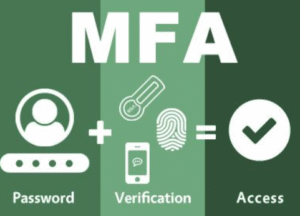
Example:
If someone gets your password, they still can’t log in without your phone or app.
That’s why MFA reduces over 99% of identity attacks.
🔑 Why MFA Is Important
MFA helps protect against:
Password leaks
Phishing attacks
Social engineering
Remote login abuse
Unauthorized account access
⭐ Types of MFA
OTP (One-time code)
Authenticator App (Google / Microsoft Authenticator)
SMS Code
Hardware Key (YubiKey)
Biometric (Face ID or Fingerprint)
☁️ What Is Conditional Access in Azure?
Think of Conditional Access as “MFA with smart rules.”
It decides when, where, and how users can access resources — based on risk, location, or device status.
Azure checks:
Who is logging in
From which country or IP
Using what kind of device
Risk level (low/medium/high)
What app is being accessed
Then it decides:
Allow login
Block login
 Require MFA
Require a compliant device
👉 Conditional Access = Intelligent, policy-based MFA.
🛠️ Hands-On: Enable MFA in AWS
Step 1 — Setup MFA for an IAM User
1️⃣ Go to AWS Console → IAM → Users
2️⃣ Select your user
3️⃣ Open Security Credentials tab
4️⃣ Under MFA, click Assign MFA
5️⃣ Choose Authenticator App
6️⃣ Scan the QR code using Google Authenticator
7️⃣ Enter the 2 verification codes
8️⃣ Click Activate MFA
✅ Your IAM user now has MFA enabled.
Step 2 — Enforce MFA for All Users
1️⃣ Go to IAM → Account Settings
2️⃣ Enable:
Require MFA
Strong password policy
Password rotation every 90 days
💡 This ensures everyone in your AWS account uses MFA.
☁️ Hands-On: Azure Conditional Access Policy
Step 1 — Open Conditional Access
1️⃣ Login to Azure Portal → Microsoft Entra ID → Security
2️⃣ Click Conditional Access → New Policy
Step 2 — Create Policy: Require MFA for All Users
Name:
Require MFA for All UsersUsers: All Users
Cloud Apps: All Apps
Conditions: Exclude trusted locations
Grant Access: Require MFA
Enable policy → ✅ ON
✅ Azure now automatically enforces MFA based on conditions.
⚖️ AWS vs Azure — Security Comparison
| Feature | AWS MFA | Azure Conditional Access |
|---|---|---|
| Basic MFA | ✔️ Yes | ✔️ Yes |
| Conditional Logic | ❌ | ✔️ |
| Risk-Based Login | ❌ | ✔️ |
| Device Compliance | ❌ | ✔️ |
| Location-Based Access | Partial | ✔️ |
| Security Strength | Strong | Smarter |
AWS = Strong MFA
Azure = Smart, Risk-Aware MFA
🧠 Real-World Scenarios
| Situation | AWS | Azure |
|---|---|---|
| User logs in from new country | MFA challenge | Conditional MFA required |
| Device not compliant | MFA only | Blocked |
| Guest user login | Limited MFA | Conditional Access enforced |
| Root or Admin login | Always MFA | MFA + Conditional Policy |
🔐 Security Best Practices
✔️ Enable MFA for all IAM and root accounts
✔️ Use authenticator apps (not SMS MFA)
✔️ Regularly review sign-in logs
✔️ Combine MFA + Conditional Access for enterprise security
✔️ Apply least privilege + zero trust principles
🧩 Quick Quiz
1️⃣ What is MFA and why is it important?
2️⃣ How is Azure Conditional Access different from AWS MFA?
3️⃣ Should all admin/root accounts have MFA enabled?
4️⃣ Why is SMS MFA considered weaker than authenticator apps?
💡 Homework
✅ Enable MFA for all AWS IAM users
✅ Create a Conditional Access Policy in Azure
✅ Test login from a new device or location
✅ Share your screenshot on LinkedIn with #Day3Done
🎓 Key Takeaways
MFA adds an extra layer of protection
Azure Conditional Access uses intelligence to secure access
AWS = Strong MFA, Azure = Smart MFA
Every cloud account must have MFA enabled
📺 Watch the Full Tutorial
🎥 Day 3 — MFA + Security Basics | AWS vs Azure Conditional Access (Hands-On)
💻 Project Files
💬 Join the Community
🧭 Next Steps
⬅️ Day 2 — Azure Entra ID + RBAC
If you found this helpful, share it with your network using #100DaysOfMultiCloud and tag @yourhandle on LinkedIn or Twitter.
For more information about interview questions and answers Open-source Projects, DevOps and Cloud project, please stay tuned TechCareerHubs official website.